
Need to prepare the file now?
Open PDF Size ToolA strict PDF upload limit can stop an otherwise complete application:
❌ "File size exceeds the maximum allowed limit of 100KB. Please upload a smaller file."
Recruitment, admission, scholarship, and government-service portals may set a maximum file size for a particular upload field. The limit is specific to the active notice and document type, so use 100KB only when the official instructions actually require it.
Phone scans and image-heavy PDFs can be much larger than a portal allows. Aggressive compression can also make names, dates, marks, seals, or signatures unreadable.
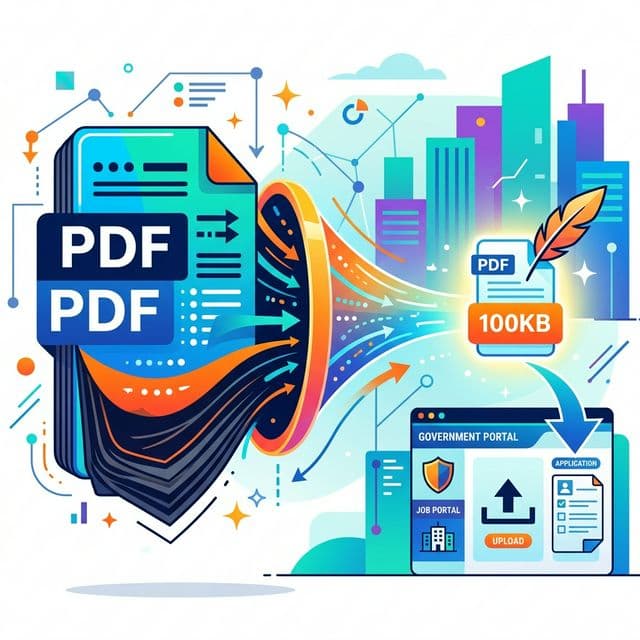
This guide explains how to try a 100KB target, how to assess the result, and what to do when the source cannot reach that size without unacceptable quality loss.
Check the Current Requirement First
Do not copy a size limit from an old article or a different recruitment cycle. Open the active official notice or the instructions beside the upload field and record the accepted format, minimum and maximum size, page limit, and any image-dimension rules.
A portal can reject a file that exceeds its configured maximum, but file size is only one check. Format, page count, password protection, dimensions, and readability may matter too.
Why Are Your PDFs So Large in the First Place?
Before we fix the problem, let's understand why your scanned PDFs are too big:
- High scanner resolution: More pixels generally produce a larger file. Lower the resolution only when the final text and seals remain readable.
- Colour scanning: Colour pages are often larger than greyscale pages. Keep colour when it is required or carries meaningful information.
- Embedded Fonts & Metadata: PDF generators often embed entire font families and revision metadata, adding unnecessary weight.
- Multiple pages: Every additional scanned page adds image data, making a very small whole-document target harder to reach.
Step-by-Step: How to Compress PDF to 100KB Online (Free)
Follow these steps, then inspect the result rather than assuming every source can reach 100KB cleanly:
Method 1: Direct PDF Compression (Recommended)
- Go to the Free PDF Compressor Tool — No signup, no login required.
- Upload your PDF file — Drag and drop or click to select. The tool supports files up to 50MB.
- Run compression — The service processes the PDF using the selected target and available compression settings.
- Check the result — Compare the original and output sizes, then open every page at normal zoom.
- Download your compressed PDF — If it is within the official limit and all required details remain readable, preview it in the destination portal before submitting.
Method 2: Convert → Compress → Rebuild (For Stubborn Files)
If direct compression doesn't get you under 100KB, try this advanced strategy:
- Convert PDF to JPG images using our PDF to JPG Converter.
- Compress each image using our Image Compressor — target 30–50KB per image.
- Rebuild the PDF from the compressed images using our JPG to PDF Converter.
- Final check — Confirm the final file size and zoom in to check that names, dates, seals, and other important text remain readable.
💡 Pro Tip for Government Job Aspirants
Before compressing, check if the portal accepts JPG images instead of PDF. If yes, simply use our Image Compressor to resize your scanned photo/signature to the exact size limit. This is faster and gives you more precise control over the file size.
Requirements Change by Exam and Cycle
SSC, UPSC, IBPS, SBI, RRB, NTA, state recruitment bodies, and universities do not share one universal PDF rule. Use the active official notice for your exact application. A requirement from another exam, document field, or year is not a safe substitute.
Common Mistakes to Avoid
- ❌ Don't use MS Paint to resize: It destroys image quality. Use a proper compression tool that optimizes without visible quality loss.
- ❌ Don't screenshot your PDF: This creates a low-resolution image with compression artifacts. Always use proper PDF compression.
- ❌ Don't compress multiple times: Each round of lossy compression degrades quality further. Compress once with the right settings.
- ❌ Don't ignore the format: If the portal says JPG, don't upload PDF (and vice versa). Always match the required format.
- ❌ Don't use random websites: Some compression sites add watermarks, require signups, or store your personal documents. Use trusted tools only.
Tips to Get Perfect Results Every Time
- ✓ Scan in Grayscale: Unless color is required, scanning in grayscale produces files 3–5x smaller.
- ✓ Use 150 DPI: This is the sweet spot — readable text, small file size. Don't scan at 300+ DPI for form uploads.
- ✓ Crop unnecessary whitespace: Remove borders and margins before compressing. Less pixels = smaller file.
- ✓ Compress one document at a time: Don't merge 10 certificates into one PDF and then try to compress it to 100KB. Compress each separately.
- ✓ Always verify readability: After compression, open the PDF and zoom in. If you can read all text clearly, it's good to upload.
Frequently Asked Questions
Q: Will compressing my PDF make the text unreadable?
It can. Strong compression of scanned pages may blur small text, seals, or signatures. Open every output page and use a larger permitted target when the 100KB result is not readable.
Q: Can I compress a 5MB PDF to 100KB?
Not always. Page count, scan resolution, colour, and image complexity determine what is achievable. Split the document only if the portal permits separate files, or rescan more efficiently when the result is unreadable.
Q: Is it safe to upload government documents to online tools?
Server-based PDF tools transfer and temporarily store files for processing. UploadReady uses HTTPS and removes processing files after the configured one-hour retention period, but no online service is risk-free. Do not upload a document when its sensitivity or governing policy requires offline processing.
Q: What if the portal still rejects my file after compression?
Double-check: (1) Is the file format correct (PDF vs JPG)? (2) Is the file size under the limit shown on the portal? (3) Does the portal have dimension requirements (e.g., 200x230 pixels for photos)? If the issue is pixel dimensions, use our Image Compressor which lets you resize to exact dimensions.
Q: Can I use these tools on my phone?
Yes! All our tools work on any device — Android, iPhone, tablet, or desktop computer. No app installation needed. Just open the tool in your browser, upload, compress, and download.
Last-Minute Application Checklist
Before you hit "Submit" on any government job portal, verify:
- ☐ Photo is in the correct format (usually JPG) and under the size limit
- ☐ Signature is in the correct format and under the size limit
- ☐ All certificates/documents are in PDF format (unless specified otherwise)
- ☐ Each file is individually under the specified size limit
- ☐ Text is clearly readable when you zoom in on the compressed file
- ☐ File names don't contain special characters (use simple names like "photo.jpg")
Compress Your PDF to 100KB Now — Free!
No signup. No watermark. No software installation. Works on phone and computer.
Before submitting an application, verify the official size and format requirements. Explore more tools at UploadReady.in.